.png)
AI Dojo Platform User Guide
Welcome to the AI Dojo Platform
The platform is designed to be powerful yet easy to use. The screen is split into two main parts:
- Home Page – This is where you’ll see your prompt input box, navigation panel and list of available capabilities.
- Navigation Panel – On the left hand side is your quick-access menu to recent chats, search, sharing centre, memory and admin tools.
- Capabilities – To the right are the baked in skills that the Dojo has access to in a handy menu bar.

Revisiting Past Chats
Your conversations are saved in the sidebar. Click on any previous chat to continue from where you left off.

Letting The Platform Remember What Matters with Personalisation and Memory
The AI Platform remembers your preferences to help it get smarter over time. You can:
- Set personalised instructions for Dojo to use across all chats
- Use the memory function to add updates directly in chat (up to 30 memories)
- View, edit, or delete memories from the side panel
- Turn memory on or off anytime


Capabilities and Skills
Use the capabilities list or start a new chat describing the skills to trigger Dojo in to activating any configured skill.

Model Picker
Use the Model Picker any time you enter a new prompt to select a different AI model from the available list. Choosing Auto will automatically trigger Dojo to route your prompt to the best model for that task.

Saving Prompts with Prompt Pad
Use the Prompt Pad to save helpful prompts you use often. Add tags and open the Pad to reuse prompts at any time.

You can create new prompts or use saved prompts in the prompt pad.

Getting Help with Prompts
Click the Magic Wand in the chat to automatically improve your prompt.


Creating Documents and Graphs
Dojo can create many files and documents including PDF's, Word, Excel, PowerPoint and Txt. You can upload files to generate documents or charts. If you don’t like the result, just ask the AI to tweak it. You can try as many times as you want.

Analysing Files
The platform accepts many file types (like Excel, PDFs, Word, images, and more). You can upload multiple files at once and it will analyse them together.

Folders
Create folders to organise your chats and enable quick access from the top of the navigation panel.


Sharing is Caring
Use the Sharing Centre to send useful chats to colleagues. Add a title, tags, or share directly via a link


Admin Portal (For Platform Admin)
The Admin Portal is available to any users that have been set as admins and provides a single page to manage and monitor their deployment. If you are an admin user, the portal will be available to you via the account dropdown in the bottom of the Sidebar panel.

Organisation Management
The Organisation Management tab provides tools for customising your AI platform and user communication during slowdowns or issues.

Here you can:
- Instruct AI Context: It defines the AI's knowledge, personality, tone, and purpose based on your organisational needs.
- Example: AI Dojo is a specialised AI enablement program designed for Australian accounting firms. It combines a secure, onshore AI workspace with practical training and strategic guidance to help firms safely embed AI into everyday accounting workflows. Through its AI workbench, bootcamps, fortnightly webinars and strategy workshops, AI Dojo focuses on lifting team-wide AI fluency, improving productivity, and building a clear, governed roadmap from quick wins to high‑impact automation across the firm.
- Define Organisation Writing Guide: It provides instructions to the Writing Guide Assistant.
- Examples:
- Use Australian English spelling
- Use 'DD/MM/YYYY' as the date format
- Examples:
- App Customisation: Configure your AI Dojo persona, platform name, sidebar colour and hero image to establish a consistent visual identity.
User Management
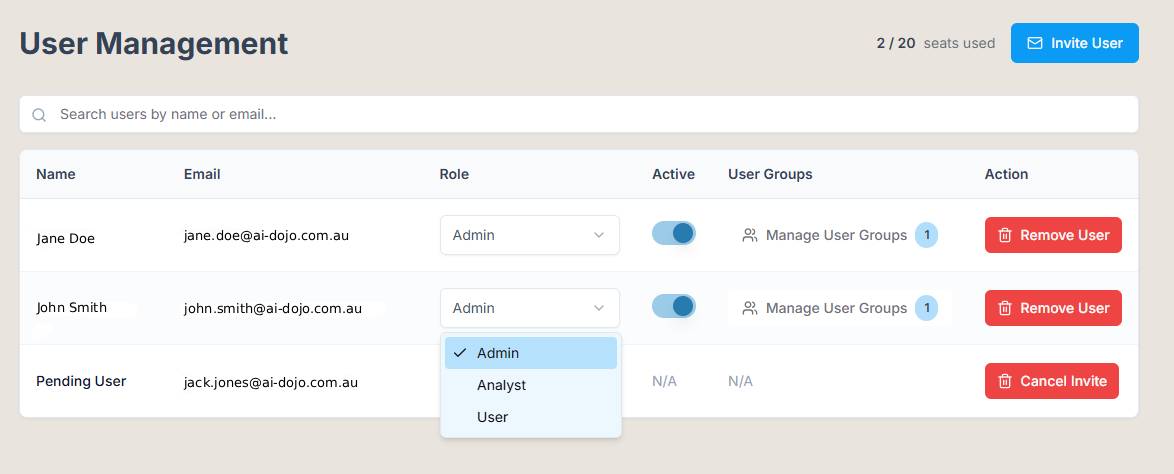
The User Management tab is where you handle all aspects of user roles and permissions, ensuring proper access control within the platform. Key functions include:
- Promote/Demote Users to Admin Roles: Elevate or reduce user privileges to manage administrative responsibilities.
- Assign Users to Groups: Group users based on their roles or departments to streamline assistant access management and improve security.
- Invite Users: Add new team members to the platform via email to expand access and collaboration.
User Group Management
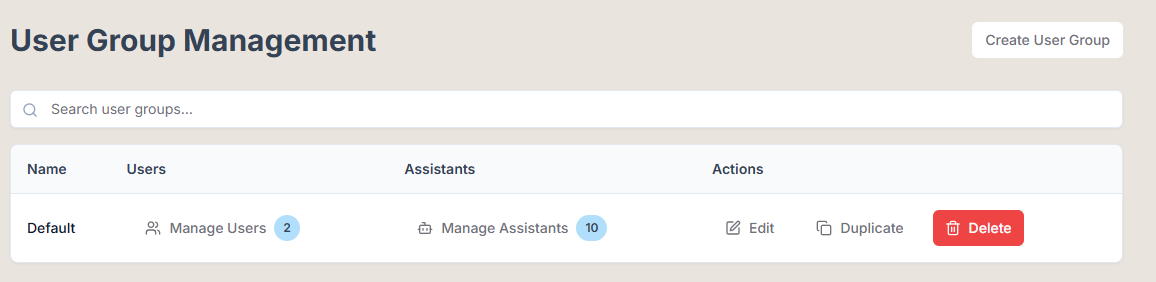
User Group Management allows you to effectively categorise users and control their access to various assistants and functionalities. In this tab, you can:
- Create New Groups: Build user groups tailored to specific roles or projects within your organisation.
- Select Accessible Assistants: Determine which assistants each group can utilise, enhancing productivity and security.
- Note: A default group is created during deployment, which includes all users by default.
Chat Tag Management
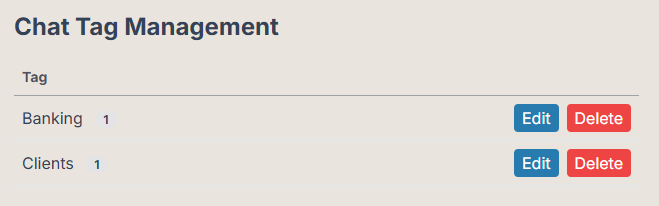
Within the Chat Tag Management tab, you can organise and monitor conversations more efficiently. This feature allows you to:
- Rename Chat Tags: Customise tags for better clarity and relevance to ongoing discussions.
- Delete Chat Tags: Remove outdated or unnecessary tags to maintain an organised and efficient tagging system.
Billing Management
Manage your subscription billing here. In this tab you can update your subscription tiers and manage your monthly consumption limits.

Analytics Centre (For Platform Admin and Analytics Users)
If you're an admin, you’ll find the Analytics Centre in the account menu.


You can view:
- Summary Report
- Engagement Metrics
- Assistant Performance
- Leaderboard
- Usage Profile
- Feature Usage
Need Help?
Look for the 🗨️ button in the bottom-left corner. You can:
- Search the help articles
- Ask a question
- Report a bug or request a feature - Our support team will get back to you as soon as possible.

